
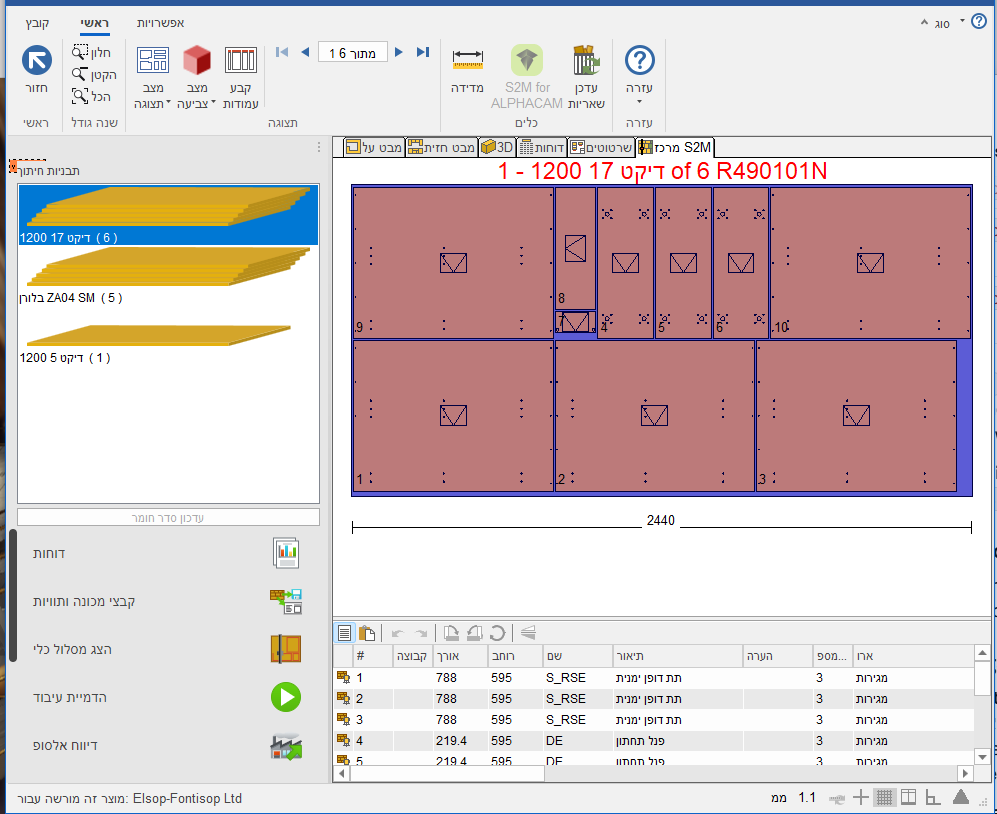
A few of you have written in this week with the exact same problem: Cabinet Vision or AlphaCAM opens and works fine, but the moment you try to export files to the machine, the export fails. In Cabinet Vision this happens at the S2M / NC output stage, and in AlphaCAM at the post-processor stage: the process stops without a file, an error message pops up (sometimes mentioning VCRUNTIME140.dll or MSVCP140.dll), or the post just closes on its own. In every case it started right after the latest Windows update, without anyone touching the software, the post, or the machine settings.
This isn't a fault in Cabinet Vision or AlphaCAM themselves. There's a component called the Microsoft Visual C++ 2015-2022 Redistributable (version 14) that a lot of software quietly depends on - and Windows updates sometimes damage it, bump it to an incompatible version, or partially reset it. The export and post-processor pieces of Cabinet Vision and AlphaCAM rely on exactly that component, which is why the program itself opens fine but the machine export falls over.
There's a fix
We put together a repair package that clears out every problematic Visual C++ version on the machine and reinstalls, from scratch, the official compatible version (14.44) - straight from Microsoft's own servers, with digital-signature verification before install. It also repairs the registration of a few related components (VBA/FM20) and checks the Windows Defender settings for the ALPHACAM folders, so the fix actually sticks.
Download the repair package (ZIP): https://b1d40828-9df5-48ee-a73e-9f834f47a356.usrfiles.com/archives/6e8953_5557ee097c2d487da1fd08d8734e00ae.zip
Before you start
Save and close everything - not just Cabinet Vision or AlphaCAM, but every related Hexagon tool too, including S2M
At the end of the first stage the computer will restart itself on its own within a few seconds - that's exactly what's supposed to happen, don't touch it
After the restart the repair keeps going and finishes on its own in the background - give it a few minutes, even if nothing seems to be happening on screen
If Windows asks whether to let the tool make changes to your computer, that's normal - approve it
How to install
Download the repair ZIP file (link above)
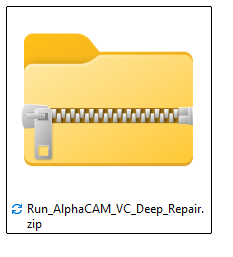
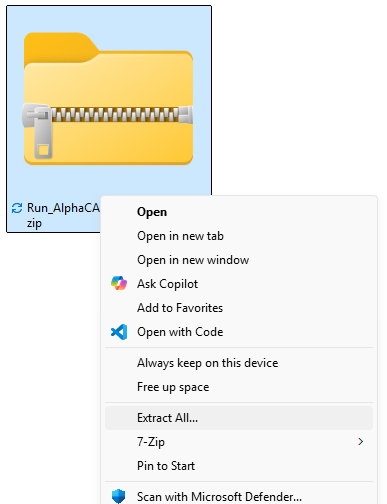
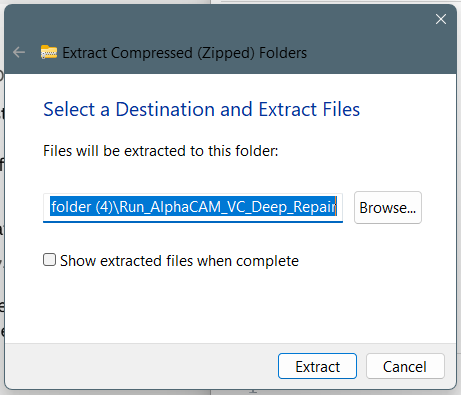
Extract the files to a folder on the desktop - don't run anything straight from inside the ZIP
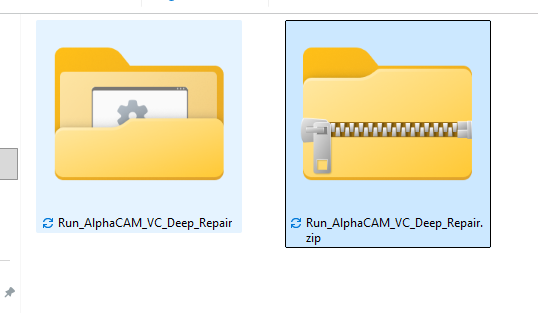
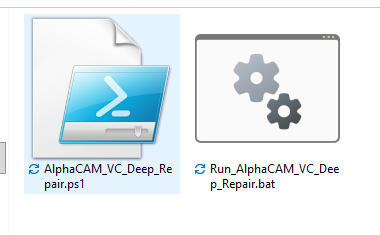
Double-click Run_AlphaCAM_VC_Deep_Repair.bat. If Windows asks whether to let the program make changes to your computer, approve it.
A dark PowerShell window will open and start running - give it a few minutes, it takes some time
The computer will restart itself on its own within a few seconds - that's normal and expected, just make sure everything's saved and closed beforehand
After the restart the repair keeps going by itself in the background and finishes on its own - no need to run anything again
Reopen Cabinet Vision or AlphaCAM and try a test export to the machine (S2M / NC, or the post-processor in AlphaCAM) - confirm the file comes out as usual
If it still doesn't work
If the export still fails after running the repair and restarting, don't keep wrestling with it on your own - reach out through our contact page or open a service call on the site, and we'll pick it up remotely from there.
Contact us | Open a service call
This is completely safe: the repair pulls the official installers straight from Microsoft's own servers and verifies their digital signature before running them, and it never touches your Cabinet Vision or AlphaCAM files, posts, or machine settings - just the system components. It also leaves a small background check in place so the fix holds up against future Windows updates too. The whole thing usually takes a few minutes, including one restart.
Good luck, the support team