
Let's get you the tools to help you make the right decision for your Cabinet Vision setup!
💻 Which computer is actually right for working with Cabinet Vision?
Cabinet Vision software is an advanced design environment that demands a lot from your computer — 3D processing, real-time graphics, and complex cutting calculations. That's why choosing the right hardware directly affects your working speed, stability, and design accuracy.
⚙️ Recommended specs for a computer dedicated to Cabinet Vision
🔹 CPU: Intel Core i7 or i9 – preference for K / KF models (desktop) or H / HX (laptop).
A strong CPU + good cooling = fast work over the long haul.
🔹 GPU: NVIDIA only – RTX 3060, RTX 4060, RTX 4070, or Quadro.
When it comes to the graphics card, there's no need to go overboard — Cabinet Vision itself barely leans on it.
But if you plan to run renders with VORTEK, you should size up accordingly.
🔹 RAM: at least 32GB (64GB recommended for large projects).
Make sure to check the memory speed.
🔹 Storage: NVMe SSD – make sure the physical sector size is ≤ 4096K.
You usually won't find sector-size information from manufacturers.
🔹 Operating system: up-to-date Windows 11.
🖥️ Laptop or desktop? The real difference in processing power
It's important to understand that an i7 in a laptop isn't the same chip as an i7 in a desktop. Mobile processors (H or U suffixes) draw less power and therefore deliver less performance. Desktop processors (K / KF suffixes), on the other hand, run at higher clock speeds, with better cooling and superior performance.
- Desktop computer — Advantages: high performance, excellent cooling, easy upgrades, better value. Disadvantages: not portable – suited only for an office or workshop.
- Laptop computer — Advantages: full portability, lets you work on-site and present projects to clients. Disadvantages: limited cooling, 20–40% lower performance than a desktop of the same spec.
💼 Recommended laptop examples with Intel + NVIDIA
🔸 ASUS ProArt StudioBook 16 OLED – i9-13900H, RTX 4070, 32GB RAM.
Advantages: built specifically for designers and engineers, accurate color, efficient cooling.
Disadvantages: expensive, but worth it for professionals.
🔸 Dell XPS 17 – i7-13700H, RTX 4070, 32GB RAM, 17” UHD display.
Advantages: outstanding build quality, a large, clear screen for project design.
Disadvantages: a bit heavy, needs a cooling pad.
🔸 MSI Creator Z17 HX – i9-13980HX, RTX 4070, 64GB RAM.
Advantages: an especially powerful CPU, built for 3D rendering.
Disadvantages: a bit noisy under load.
🔸 HP ZBook Fury 16 G10 – i7-13850HX, RTX A2000 (a professional card).
Advantages: high engineering-grade stability, built for working with CAD and CAM software.
Disadvantages: a less "consumer" design, but reliable for years.
🧠 Important tips for a comfortable, accurate workspace
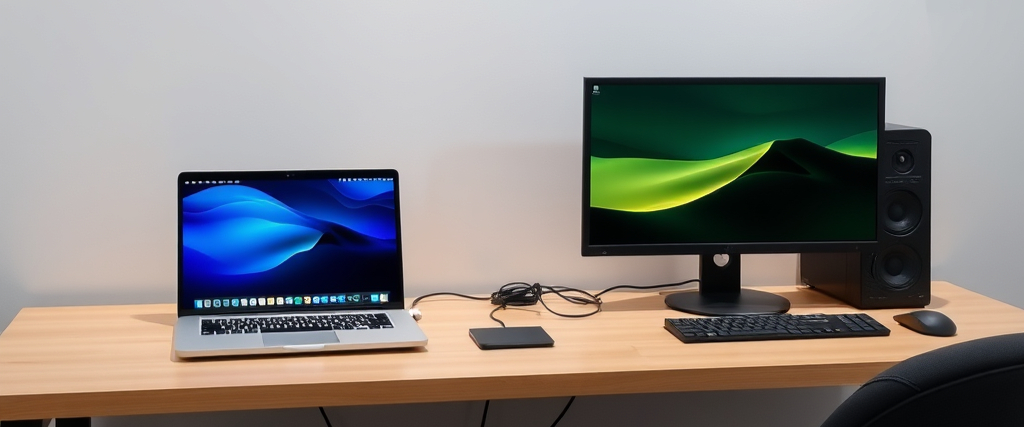
- 🖥️ Work on a big screen: even if you have a laptop, it's worth connecting it to an external 27” or 32” monitor. A large screen gives you a wider view of your projects and reduces design mistakes.
- 💺 Watch your ergonomics: the screen should sit at eye level, and a quality mouse and keyboard improve accuracy and speed.
- 🧩 Set up a stable work environment: avoid running a pile of programs at once. Cabinet Vision needs resources — give it the stage.
- ⚡ Cooling: on a laptop, make sure to use a cooling pad. Heat causes performance to drop ("thermal throttling").
- 🧾 Keep backups: use a fast external drive for daily backups. External SSD drives from Samsung or Crucial are excellent for this.
💬 Why does this matter so much?
A designer working with Cabinet Vision needs a stable, quiet, fast environment. When the computer responds quickly, you work in flow, stay focused on details, and avoid design mistakes. Good performance = a more accurate result, fewer headaches, and a lot more professionalism.
ELSOP | CV_Advance